EMPLOYER REGISTRATION TUTORIAL
- Go to url https://peakjob.net
- Click on Employer

FIRST TIME REGISTER
- Click on Register, for the first time registration.
- Fill in all your personal particular details in the box and click ‘Register New Account’.
- After successful register, the webpage will prompt out About Us page.
LOGIN
- Click on Login.
- Fill in the username and password details and click ‘Login’.
REGISTER NEW COMPANY
- Click on “Add Company’.
- Fill in all your company particular details in the box and click ‘Save Company’.
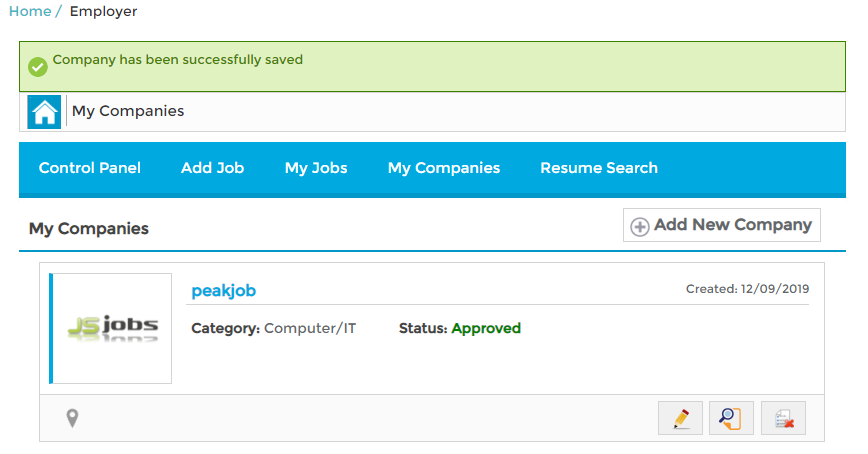
ADD NEW JOB
- Click on the ‘Add Job’ tab.
- Fill in the particular details and click Save Job.
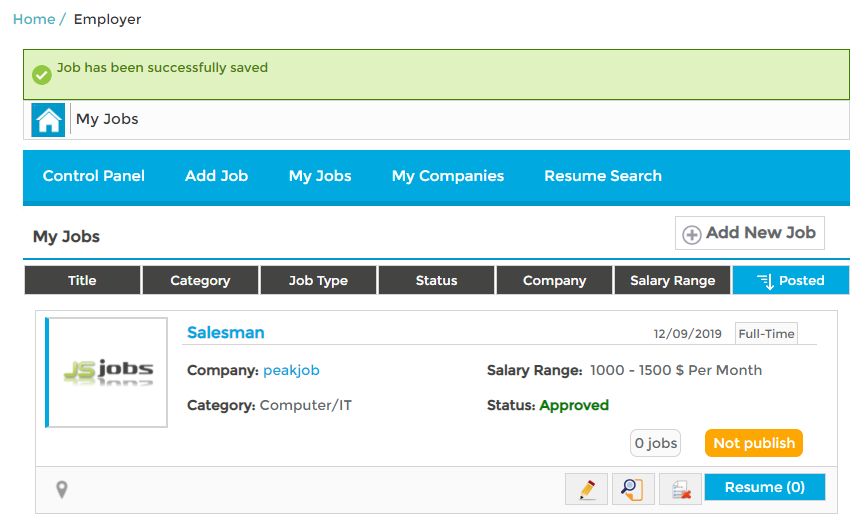
VIEW ALL THE JOB POSTED
- Click on the ‘My Job’ tab.
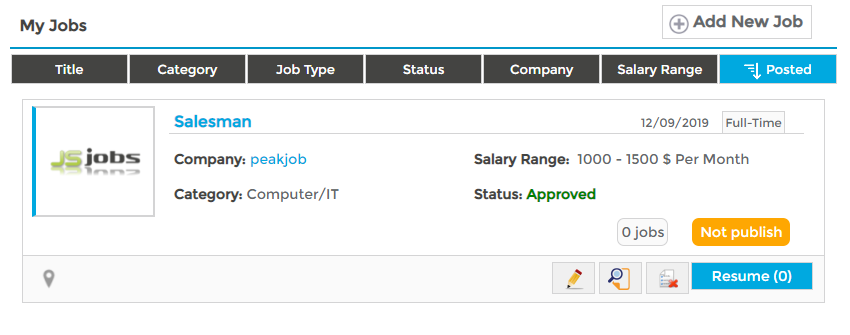
- Above pic show all the job is posting.
SEARCH RESUME
- Click on the ‘Resume Search’ and find a suitable candidate.

- Key in the details and click resume search.
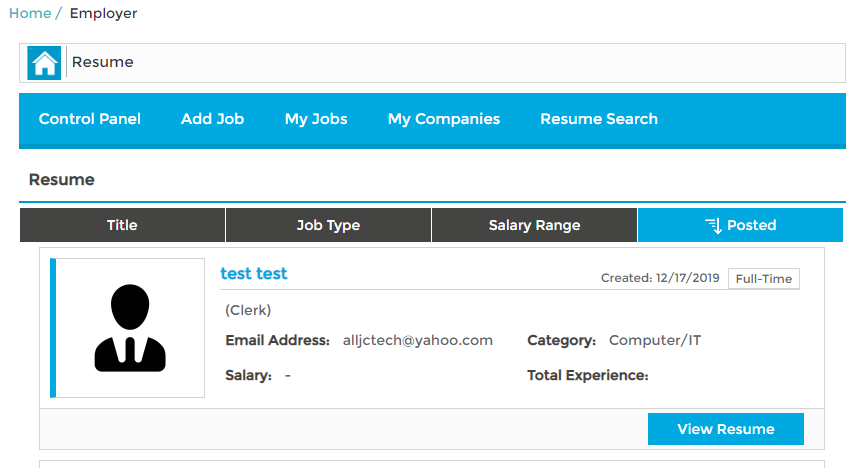
- Above pic show all the resume is posting. If the candidate is suitable, click ‘View Resume.
JOBSEEKER REGISTRATION TUTORIAL
- Go to url https://peakjob.net
- Click on Jobseeker

FIRST TIME REGISTER
- Click on Register, for the first time registration.
- Fill in all your personal particular details in the box and click ‘Register New Account’.
- After successful register, the webpage will prompt out About Us page.
LOGIN
- Click on Login.
- Fill in the username and password details and click ‘Login’.
POST RESUME
- Click on the ‘Add Resume’.
- Fill in all your personal particular details in the box and click ‘Save’.
- View back the resume that you posted by clicking ‘My Resume”.

- Once done, click on the Jobseeker to view the menu.

POST COVER LETTER
- Click on the ‘Add Cover Letter’.
- Fill in all the cover letter details in the box and click ‘Save Cover Letter’.
- View back the cover letter by click on the ‘My Cover Letters’.

FIND A JOBS
- Click on ‘Newest Jobs’ to see the job available

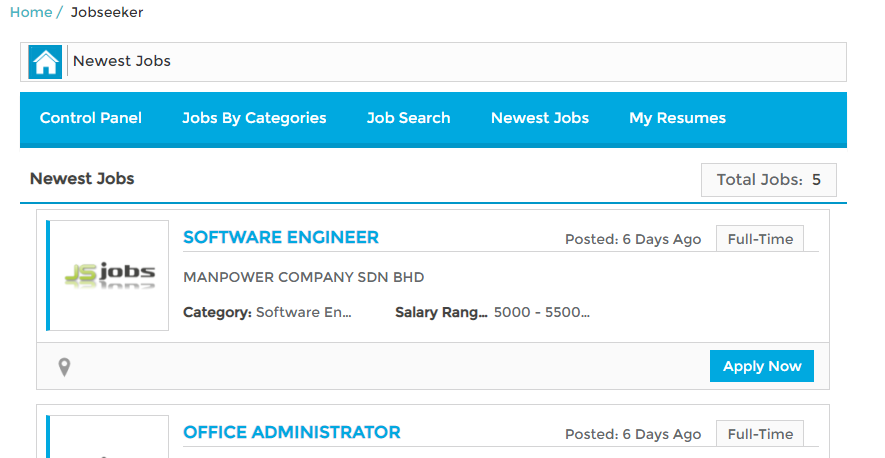
- Above pic show all the job is posting. If the jobs suitable, click ‘Apply Now’.